Image Tool
 The Image Tool adds pixel-based graphics to TheView. Supported image file formats include jpeg (.jpg), bitmap (.bmp, .dib), and icon (.ico). An Image Tool object can be static or dynamic. If the object is to be dynamic, it must be associated with a CygNet point, and the image can change based on any one of the point’s alarm states or bit states. Each state can be represented by a different image.
|
Image Tool Examples |
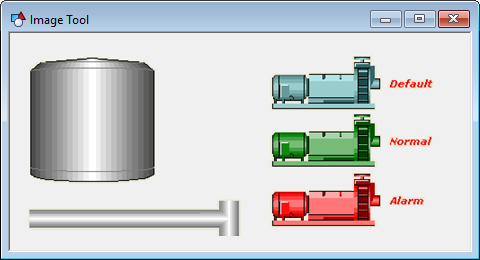
To associate the object with a point use the point identifier properties to form a fully qualified CygNet tag string. The point identifier properties are [1:SiteService], [2:Point ID], [3:Long Point ID], [4:Facility ID], and [5:UDC]. If the object is on a templated screen, only use the [5:UDC] property.
The [Images] property defines the image or images displayed by the object.
The Layout property specifies the image’s relationship to its boundary. If set to Left, Right, or Center, the image is set to its original size and proportions and is aligned within the boundary in the top left corner (Left), the center (Center), or the bottom right corner (Right). If set to Size to Fit, the boundary is resized to fit the image’s original size and proportions. If set to Stretch, the image is sized to fit within the object’s boundary (proportions are not maintained) and can be resized by dragging the object’s boundary. To maintain the current proportions while resizing, hold down the Shift key. To resize the image one pixel at a time regardless of TheView’s grid settings, hold down the Shift key and use the cursor keys.
If you want the image to be resized when the screen is resized in Run mode, its Layout property must be set to Size to Fit and FlexHorizontal and FlexVertical must be set to Expand or Proportional. If you are adding an image that will be resized if the screen is resized, consider using a vector-based image. This requires use of the Vector Image Tool. Resizing a pixel-based image too large will result in distortion.
More:


